Environment
Reflection for Secure IT Windows Client version 7.0 or higher
Reflection for Secure IT UNIX Client version 7.1 or higher
Situation
Resolution
Overview of Configuration Steps
Configuring Reflection for Secure IT Windows Server for certificate authentication is a multi-step process:
- Generate a certificate request using the ssh-certtool utility and send it to a Certificate Authority (CA). The CA sends you your signed certificate and their Trusted Root CA Certificate.
- Create a PKCS12 package with your private key and the signed certificate sent to you by the CA.
- Configure the server to use certificate authentication.
- Configure Reflection for Secure IT clients to validate server certificates.
A. Generate a Certificate Request Using the SSH-Certtool Utility
Use the ssh-certtool utility to generate a certificate for the Reflection server. The steps vary depending on certificate type, extensions, and other factors, including how you choose to sign your certificates. For more information about the ssh-certtool utility, see the product documentation, https://support.microfocus.com/manuals/rsit_win_server.html.
- In a DOS command window, enter the path to the ssh-certtool, which is typically found in the C:\Program Files\Attachmate\RSecureServer folder on the Reflection for Secure IT server.
- Enter the following command to generate a certificate request that you can send to your Certificate Authority for signing:
ssh-certtool –n <rsa or dsa> -o <output file name> req CN=<Server's Fully Qualified Domain Name>,O=<Company>,OU=<OrganizationalUnit>,L=<City>,ST=<State>,C=<Country>For example:
ssh-certtool -n rsa -o myHost req CN=myHost.myCo.com,O=Attachmate,OU=support,L=Seattle,ST=Washington,C=USIf you need to add the Subject Alternative Name, use the following format:
ssh-certtool -n <rsa or dsa> -o <output file name> -z DNS=<Server's Fully Qualified Domain Name> req CN=<Server's Fully Qualified Domain Name>,O=<Company>,OU=<OrganizationalUnit>,L=<City>,ST=<State>,C=<Country>For example:
ssh-certtool -n rsa –o myHost -z DNS=myHost.myCo.com req CN=myHost.myCo.com,O=Attachmate,OU=support,L=Seattle,ST=Washington,C=US- The ssh-certtool utility generates two files:
myHost.pkcs10 (the certificate request)
- Send the myHost.pkcs10 file to your Certificate Authority for signing.
If you are using Microsoft Certificate Services server as your Certificate Authority, you can open the file in a text editor, copy the content, and then paste the content into the request form.
B. Create a PKCS12 Package
After you submit the certificate request to your Certificate Authority for signing, they will send you your signed public key certificate. Depending on the CA used, the certificate may be in a "Base-64 encoded" or ".pem" format. Either format is acceptable. Note: Do not use DER encoded binary.
Once you receive your CA-signed client certificate from the Certificate Authority, create a PKCS12 package (which you will later import into the Microsoft Certificate Store or Reflection’s Certificate Store in version 7.1 or higher).
- Upload your signed public key certificate in binary format to the C:\Program Files\Attachmate\RSecureServer folder. Save or rename the certificate to match the name used for the private key plus the certificate extension. For example:
myHost.ssh2.crt- In a DOS command window, enter the path to the ssh-certtool:
C:\Program Files\Attachmate\RSecureServerUse the ssh-certtool to generate a pkcs12 file by combining the private key and the signed certificate, using the following format:
ssh-certtool –o <output file name> pkcs12 <private_key> <certificate>For example:
ssh-certtool –o myHost pkcs12 myHost.ssh2 myHost.ssh2.crtWhen you are prompted for a passphrase, press Enter twice to create a pkcs12 file without a passphrase. This process generates a file called myHost.p12.
- For consistency, move the pkcs12 file from the C:\Program Files\Attachmate\RSecureServer folder to
For Windows Server 2008: C:\Users\All Users\Attachmate\RSecureServer
For Windows Server 2003: C:\Documents and Settings\All Users\Application Data\Attachmate\RSecureServer\
C. Configure the Server to Use Certificate Authentication
You have two options for configuring the server:
- Use the local computer certificate from the Windows certificate store
If you select this option, see KB 7022017 for more information.
- Use the following certificate
If the server requires FIPS Mode, you must use this option. Follow these steps to configure the server:
- In the Reflection for Secure IT Server console, click the Identity tab. In the Host certificate section, select "Use host certificate" (new in version 7.2), select the “Use the following certificate” radio button. For Private key, click the Browse button and select the .p12 file that you created in step 2.
Using our example, we located the myHost.p12 file in:
C:\Documents and Settings\All Users\Application Data\Attachmate\RSecureServer\The certificate is automatically extracted from the .p12 file and fills in the path in the Certificate field.
- Click File > Save Settings.
- Click Action > Restart Server.
D. Configure Reflection for Secure IT Clients to Validate Server Certificates
Follow the steps to configure Reflection for Secure IT Client on either Windows or UNIX:
Configuring Reflection for Secure IT UNIX Client 7.1 or Higher
Configuring Reflection for Secure IT Windows Client 7.0 or Higher
When server certificates are used to authenticate with client connections, the Trusted Root certificate for the server’s certificate must reside in the connecting client’s Trusted Root store.
When you submitted the certificate request to your Certificate Authority for signing, they sent you your signed certificate and the Trusted Root CA certificate. For background information on this topic, read About Trusted Root CA Certificates.
Note: You need to add the Trusted Root CA certificate only if it is not already available on the client.
Obtain the Trusted Root CA Certificate
If you did not receive the Trusted Root CA certificate, you can obtain it in one of two ways:
- Download it from your signing Certificate Authority’s website.
- Open the received signed certificate by double-clicking it and then selecting the Certificate Path tab. Click the uppermost certificate and then select View Certificate > Details > Copy to File.
Add the Trusted Root CA Certificate
Once you've obtained the Trusted Root CA certificate, add it to the Reflection for Secure IT Windows Client. You can add the Trusted Root CA certificate to and configure the client to use the Microsoft certificate store, or, you can Configure the Client to Use the Reflection Certificate Store.
Configure the Client to Use the Microsoft Certificate Store
First, add the Trusted Root CA Certificate to the Microsoft Certificate Store:
- On the client PC, double-click the Trusted Root CA Certificate.
- Click Install Certificate.
- Follow the prompts to complete the installation. Once installed, you can view the certificate in Internet Explorer in Tools > Internet Options > Content tab > Certificates button> Trusted Root Certification Authorities tab.
Then, configure the client to use the Trusted Root CA Certificate from the Microsoft Certificate Store:
- In the Reflection for Secure IT client, open the Connection > Connection Setup dialog box.
- Enter a host name and user name to enable the Security button, then click the Security button to open the Reflection Secure Shell Settings dialog box.
- On the PKI tab, click the Reflection Certificate Manager button.
- On the Trusted Certification Authorities tab, select the "Use System Certificate Store for SSH Connections" check box.
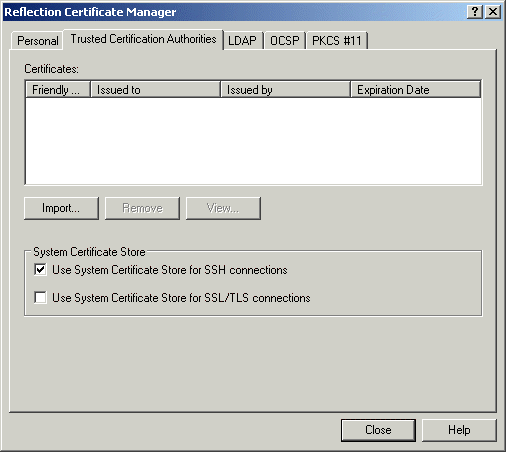
- Click Close, and then click OK.
Configure the Client to Use the Reflection Certificate Store
You can configure Reflection for Secure IT Windows Client to store and use the Trusted Root CA certificate in Reflection’s certificate store.
- In the Reflection for Secure IT client, open the Connection > Connection Setup dialog box.
- Enter a host name and user name to enable the Security button, then click the Security button to open the Reflection Secure Shell Settings dialog box.
- On the PKI tab, click the Reflection Certificate Manager button.
- In the Reflection Certificate Manager, on the Trusted Certification Authorities tab, click the Import button.
- Select the Trusted Root certificate for the server’s certificate and click Open.
- On the Trusted Certification Authorities tab, clear the "Use System Certificate Store for SSH Connections" check box.
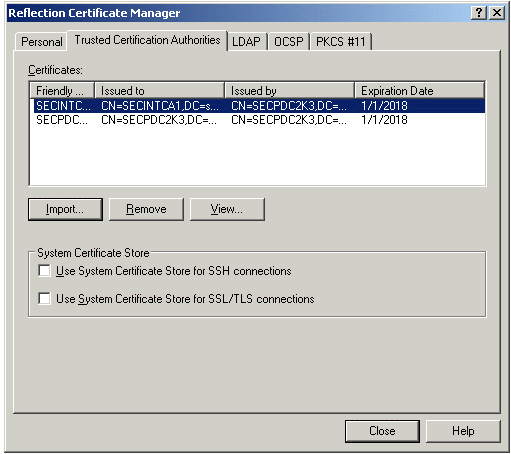
- Click Close, and then click OK.
To configure Client Certificate Authentication for your Reflection for Secure IT 7.x Windows Client sessions, see KB 7021987.
Note: Certificate authentication has the same restrictions as user key authentication. Currently, certificate authentication with domain accounts works on Windows 2003 servers; it does not work on Windows 2000 servers. In addition, the special account "Everyone" must be a member of the Built-in Pre-Windows 2000 Compatible Access Security Group.
Configuring Reflection for Secure IT UNIX Client 7.1 or Higher
Beginning in Reflection for Secure IT UNIX client version 7.1, the UNIX client uses Reflection PKI Services Manager for X.509 certificate validation.
Note: The PKI Services Manager is available for either the Windows or the UNIX environment. See KB 7021870, “Reflection PKI Services Manager Overview,” for more information and sample configurations.
The steps to configure Reflection for Secure IT UNIX Client depend on whether the Reflection for Secure IT UNIX Client and the PKI Services Manager are installed on different machines or on the same machine.
Different Machines: Follow these steps if Reflection for Secure IT UNIX Client and PKI Services Manager are installed on different machines.
- Determine the IP Address of the PKI Services Manager.
- Download a copy of the PKI Services Manager’s public key. The default public key name is pki_key.pub.
- Transfer the pki_key.pub to /opt/attachmate/pkid/config on the UNIX server.
- In the /etc/ssh2/sshd2_config file, edit the PkidAddress line with the PKI Service Manager’s IP address.
- Uncomment both PkidAddress and PkidPublickey lines. For example:
### Add PkidAddress and pkiPublickey for testing##PkidAddress=10.10.1.216:18081PkidPublicKey=/opt/attachmate/pkid/config/pki_key.pub####- Save the config file.
Same Machine: Follow these steps to configure Reflection for Secure IT UNIX Client to use the PKI Services Manager validation services.
- In the /etc/ssh2/sshd2_config file, uncomment both PkidAddress and PkidPublickey lines, keeping the defaults. For example:
Uncomment both PkidAddress and PkidPublickey lines, keeping the defaults. For example:### Add PkidAddress and pkiPublickey for testing##PkidAddress=localhost:18081PkidPublicKey=/opt/attachmate/pkid/config/pki_key.pub####- Save the config file.
You have completed configuring certificate authentication for Reflection for Secure IT Windows Server.
About Trusted Root CA Certificates
A certificate issued by a Certificate Authority to itself is called a self-signed Trusted Root certificate and is the anchor point for a chain of trust. When one entity uses a certificate to authenticate itself, the other entity must verify the trust relationship between the first entity's certificate and the Trusted Root CA that is at the beginning of the chain of trust.
For example, if a server is presenting a certificate to authenticate itself to the client, the client needs to verify two conditions:
- The server has the private key for the public key contained in the certificate and can correctly sign an authentication message.
- The signatures of any intermediate CA certificates are valid all the way to the Trusted Root CA.
This second validation requires that the Trusted Root certificate for the server's certificate reside in the Trusted Root store on the client and that any intermediate CA certificates can be obtained.
Additional Information
Legacy KB ID
This document was originally published as Attachmate Technical Note 2430.