Environment
Reflection 2014
Reflection for IBM 2014
Reflection for UNIX and OpenVMS 2014
Reflection for IBM 2011
Reflection for UNIX and OpenVMS 2011
Reflection Standard Suite 2011
Situation
Follow the steps in this article to map keys in Reflection Desktop, Reflection 2014, and Reflection 2011. An example of how to map an escape sequence is also included in the note.
Resolution
- Connect to your host.
- Click the Tools tab. In the Input group, click Keyboard Mapper.
- You can select the key to map one of two ways:
- In the Map Keys section, place your cursor in the field and press the key or key combination that you want to map, and then click the Select Action button. Or,
- In the Keyboard Mapper section, scroll to and select the Key Combination, and then click Modify.
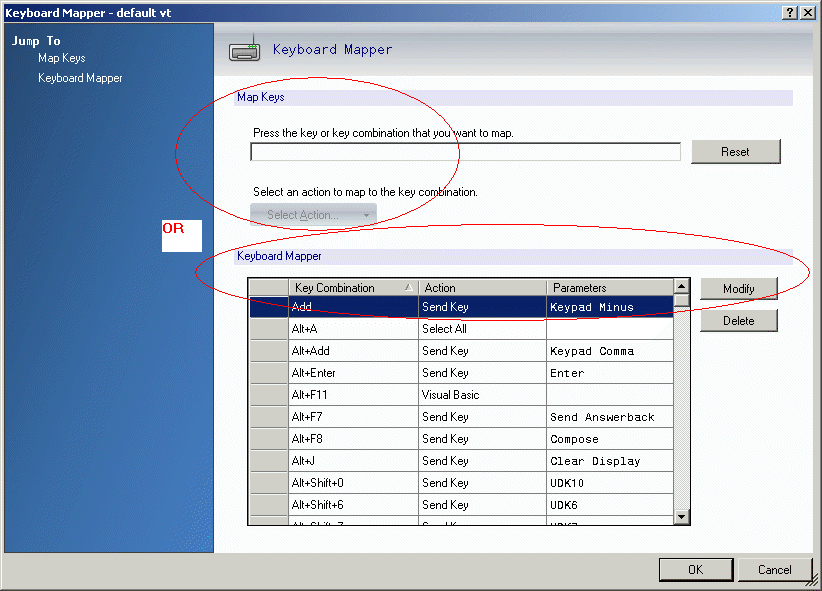
Figure 1: Select the key to map under Map Keys or Keyboard Mapper.
- In the Select Action dialog box, there are several Map To options to choose from in the left pane:
Send Key
Sent Text
Launch Application
Open URL
Run Reflection Workspace Macro
Other Action
Action SequenceSelect an action, such as Open URL, in the left pane and make the selections or provide the information required in the right pane.
View Full Size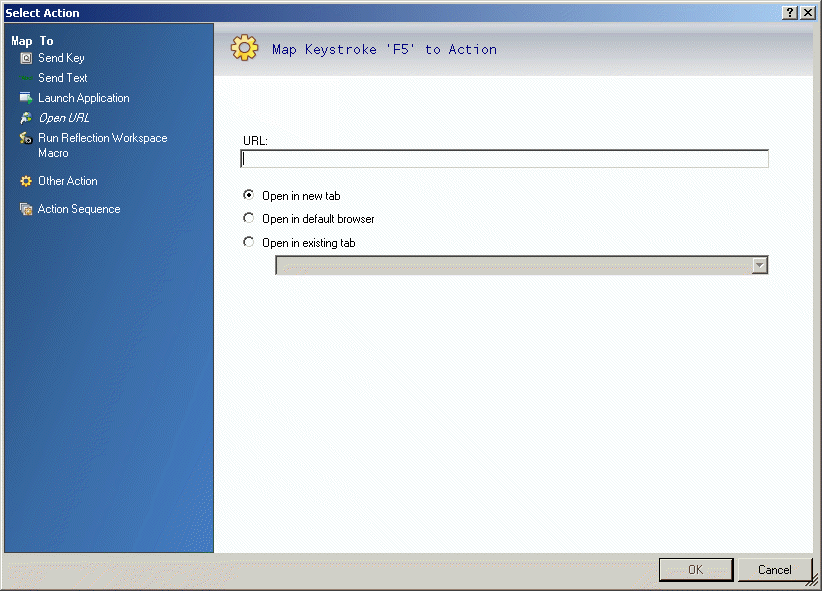
Figure 2: Select the action and configure it. In this example, the F5 key is being mapped to open a URL.
Mapping Control Characters in Reflection
To map a control character, select Send Text in the Select Action dialog box. Then use one of the following methods to enter the symbolic text for the control character in the "Text to send to host" text box:
- ALT+nnn -- Generate a control character by holding down the ALT key and pressing the three digit ASCII number using the numeric keypad. The symbolic text for the control character is placed into text box (<ESC> for ALT+027, for example). Using this method, Reflection 2011 can generate control characters for ASCII 1 (Start of Header) through ASCII 31 (Unit Separator).
- CTRL+x -- Generate a control character by holding down the CTRL key and pressing the letter corresponding to the control character. The symbolic text for the control character is placed into text box (<ESC> for CTRL+{, for example). Using this method, Reflection can generate control characters for ASCII 1 (Start of Header) through ASCII 29 (Group Separator).
- Symbolic Text -- Directly enter the symbolic text of the control character. All control characters from ASCII 0 (Null) through ASCII 31 (Unit Separator) can be entered using this method.
Note: If you are using Reflection 2014 ot later, you can use the “Select a special character“ list to map commonly used special characters, as shown in Figure 4.
Use the following table to identify the value for each control character for each entry method.
| Control Character |
ALT+nnn |
CTRL+x |
Symbolic Text |
| Null |
|
|
<NUL> |
| Start Of Header |
ALT+001 |
CTRL+a |
<SOH> |
| Start Of Text |
ALT+002 |
CTRL+b |
<STX> |
| End Of Text |
ALT+003 |
CTRL+c |
<ETX> |
| End Of Transmission |
ALT+004 |
CTRL+d |
<EOT> |
| Enquiry |
ALT+005 |
CTRL+e |
<ENQ> |
| Acknowledgement |
ALT+006 |
CTRL+f |
<ACK> |
| Bell |
ALT+007 |
CTRL+g |
<BEL> |
| Backspace |
ALT+008 |
CTRL+h |
<BS> |
| Horizontal Tab |
ALT+009 |
CTRL+i |
<HT> |
| Line Feed |
ALT+010 |
CTRL+j |
<LF> |
| Vertical Tab |
ALT+011 |
CTRL+k |
<VT> |
| Form Feed |
ALT+012 |
CTRL+l |
<FF> |
| Carriage Return |
ALT+013 |
CTRL+m |
<CR> |
| Shift Out |
ALT+014 |
CTRL+n |
<SO> |
| Shift In |
ALT+015 |
CTRL+o |
<SI> |
| Data Link Escape |
ALT+016 |
CTRL+p |
<DLE> |
| Device Control 1 |
ALT+017 |
CTRL+q |
<DC1> |
| Device Control 2 |
ALT+018 |
CTRL+r |
<DC2> |
| Device Control 3 |
ALT+019 |
CTRL+s |
<DC3> |
| Device Control 4 |
ALT+020 |
CTRL+t |
<DC4> |
| Negative Acknowledgement |
ALT+021 |
CTRL+u |
<NAK> |
| Synchronous Idle |
ALT+022 |
CTRL+v |
<SYN> |
| End of Transmission Block |
ALT+023 |
CTRL+w |
<ETB> |
| Cancel |
ALT+024 |
CTRL+x |
<CAN> |
| End of Medium |
ALT+025 |
CTRL+y |
<EM> |
| Substitute |
ALT+026 |
CTRL+z |
<SUB> |
| Escape |
ALT+027 |
CTRL+{ |
<ESC> |
| File Separator |
ALT+028 |
CTRL+| |
<FS> |
| Group Separator |
ALT+029 |
CTRL+} |
<GS> |
| Record Separator |
ALT+030 |
|
<RS> |
| Unit Separator |
ALT+031 |
|
<US> |
The following example shows how to map an escape sequence.
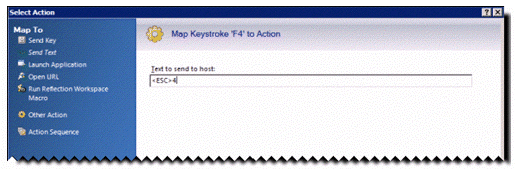
Figure 3: Map keystroke F4 to send the text Escape 4 in Reflection 2011.
This example shows how to map to the Backspace, using the “Select a special character” list that is available in Reflection 2014 and later.
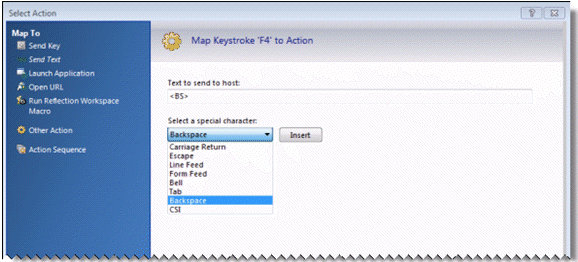
Figure 4: Map keystroke F4 to send Backspace in Reflection 2014.
Creating an Action Sequence
Follow these steps to map a series of actions to a keystroke.
- In the Select Action dialog box, select Action Sequence in the left pane.

- In the right pane, click the Add button.

- In the right pane, under Action category, select an action, such as Send Key, from the list.
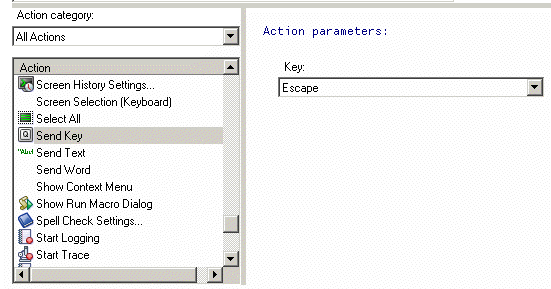
- Action parameters vary depending on the action selected. If required, you will be prompted for the needed information for each parameter to the right of the Action. Select or provide the Action parameter.
For example, the Send Key action requires the parameter "Key" to be identified.
- Repeat steps 3 and 4 for each action in the sequence until the sequence is complete.
- Click OK.
Troubleshooting
If you are using non-VT terminal types such as Linux Console, Wyse, SCO ANSI or BBS-ANSI, and have trouble mapping a key, contact Customer Support (https://support.microfocus.com/contact/attachmate.html) for the latest update,.