Environment
Reflection for the Web (All Editions) version 12.2 or higher
Reflection Security Gateway 2014
Situation
Use the Replication feature in Management and Security Server to synchronize the management data across of your administrative servers. This configuration must be done before setting up a load-balancing environment. This technical note describes how to configure the Master and Slave servers for replication, and provides the steps to manage the servers' certificates for secure connections.
Note: For general information about how Management and Security Server or Reflection for the Web works in a load-balanced environment, see KB 7022833.
Resolution
Overview
Replication allows you to synchronize multiple administrative servers by propagating configuration and session changes made on one server to all of the servers in a replication group. An administrator sets up Replication with one Master server and one or more Slave servers. The servers in the replication group are synchronized because the Master replicates the changes to all of the Slaves.
When configuring replication, you may choose to use HTTP or HTTPS as your server-to-server communication transport. If you choose HTTP (not secure), you do not need to manage certificates. Continue with Configuring Replication.
If you choose HTTPS, you must establish trust between the Master and the Slave(s). Continue with Managing Certificates.
Note: In a Replication environment, not all security settings are replicated.
- Security settings that are replicated: those configured on the Administrative WebStation > Security Setup > Security tab.
- Security settings that are not replicated: those configured on the Certificates, Security Proxy, Secure Shell, and Credential Store tabs.
Managing Certificates
Certificates must be exchanged between the Master and the Slave(s) by establishing a trust to secure the connection.
If you select HTTPS as your transport option, Replication requires that the Master server has each Slave web server's certificate installed to the Master's Management and Security Server trusted certificate store, and that each Slave server has the Master web server's certificate installed to the Slave's Management and Security Server trusted certificate store.
To install the appropriate certificates to the appropriate trusted certificate store choose one of these approaches:
- Import the certificate of the signing authority who issued the individual signed certificates.
- Import the individual server's signed certificates.
- Continue as follows:
Using CA-signed Certificates
If the web servers are using CA-signed certificates, the public root or intermediate certificates that were used to sign your certificate may already be installed in the Administrative Server’s Trusted Certificate Store.
To check if the certificates are installed:
- Launch the Administrative WebStation, and open Security Setup > Certificates tab.
- Find the heading, Administer Management and Security Server Trusted Certificate List.
- Click View or modify certificates trusted by the Management and Security Server.
- Under Trusted Root Certificate Authorities, review the list of root CA-certificates.
Locate the root or intermediate CA-certificate that issued your certificate, and verify that the Expiration Date and the Issued To and Issued By fields are correct.
If the CA-signed certificates are in this list and are valid, you do not need to import server certificates. Proceed with Configuring Replication.
If the CA-signed certificates are not is this list, continue with Importing Server Certificates.
Importing Server Certificates
When the web server’s certificates are not CA-signed, you need to import them. Use the following steps as a guide.
- If the web servers’ certificates are available in files, copy the files to the \MSSData\certificates folder and then proceed to Part III. Import the certificate into Management and Security Server Trust Store.
- If the web servers’ certificates are not in files, browse to your server using HTTPS and follow this three-part process. Detailed steps follow.
Part II: Export the certificate from your browser store to a file.
Part III: Import the Master (or Slave) web server certificate into the Management and Security Server Trusted Certificate Store.
Note: To import a Master web server certificate to a Slave server, simply reverse the Master/Slave references.
Detailed Steps using Mozilla Firefox
Parts I and II are done in a browser, and are accomplished most easily by using Mozilla Firefox.
Part III is done in Management and Security Server's Administrative WebStation.
Part I. Import the Slave Server Certificate to the browser's certificate store.
- On a client workstation , launch Mozilla Firefox.
- Browse to the Slave web server using HTTPS, for example:
https://slaveServer1.mycompany.com:443- In the dialog that says, "Your connection is not secure," click Advanced.
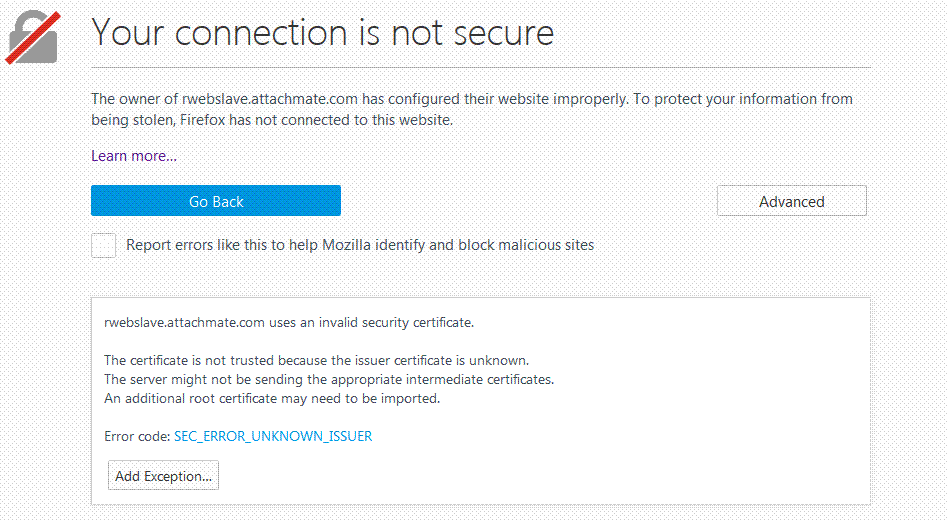
- Click Add Exception. Continue with step 5 (in Part II).
Part II. Export the Slave server's certificate from your browser store to a file.
- In the Add Security Exception dialog, click View.
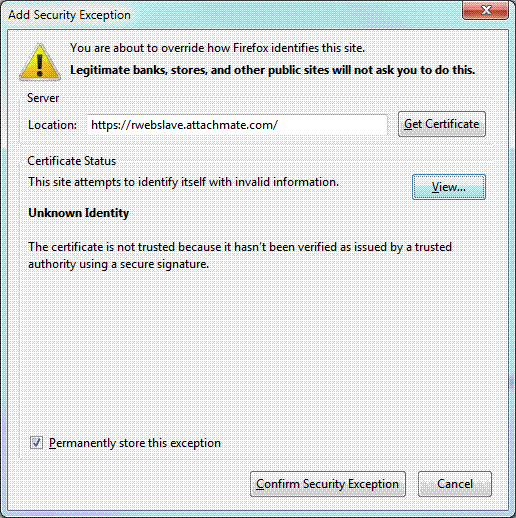
- Click the Details tab and note the Certificate name. Click Export.
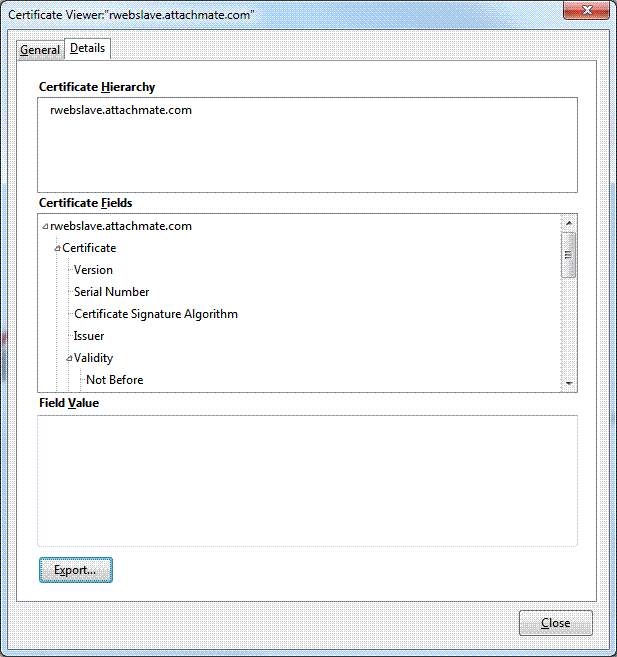
- In the Save Certificate to File dialog, enter a file name with a .crt extension, and click Save. Note the location where you saved the file.
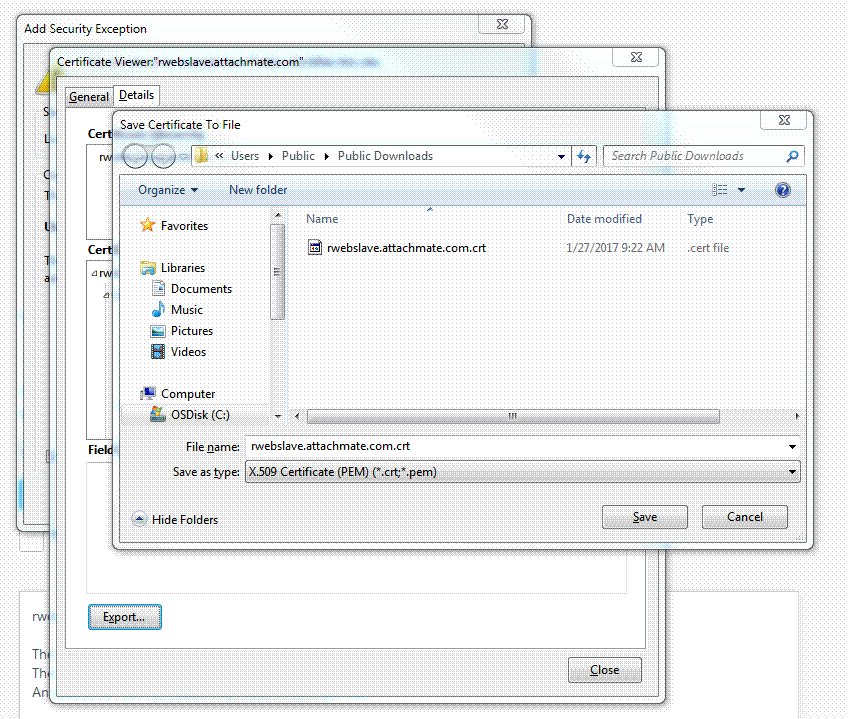
- Locate the certificate file saved in the previous step and copy it to the MSS\MSSData\certificates\ folder on the Master server.
Result: The Slave server's certifcate, now in the Master server's certificates folder, needs to be added to the Master's Management and Security Server Trust store.
Continue with Part III.
Part III. Import the certificate into Management and Security Server Trust Store
- On the Master server, open the Administrative WebStation, go to Security Setup > Certificates tab.
- Under "Administer Management and Security Server Trusted Certificate List," click View or modify certificates trusted by the Management and Security Server.
- Click Import.
- Enter the certificate file name you entered in Part II - step7, above.
- Enter a password if your certificate has one; otherwise leave it blank.
- Enter a friendly name (to help you identify which server this certificate represents).
- Click Submit.
The Slave's certificate is now listed under "Import Trusted Certificates," which means the Master now trusts the Slave.
- >NOTE: Repeat Parts I, II, and III for each additional Slave server so that the Master trusts each Slave. Then, continue with Importing Master Server Certificates.
Importing Master Server Certificates
Once the Slave server certificates are in the Master's Trusted Certificate List, you must import the Master server certificate to each Slave server.
Follow the steps in Parts I, II, and III, but reverse the Master and Slave designations.
For example, in Part I - step 1: On your client, launch Mozilla Firefox and browse to the Master server using HTTPS.
Configuring Replication
You must configure the servers for their specific role: Master or Slave.
Warning: Be aware that Master server settings (including sessions, access control setup, and security settings, but excluding certificate stores) overwrite the settings on the server(s) that are configured to be the Slave server(s).
Configuring Replication is a multi-step process during which you must alternate between configuring Master server options and Slave server options. Begin with the Master server.
Configuring the Master server
On the MASTER server:
- In Administrative WebStation, click Settings > Replication tab.
- For Server Role, select the Master option.
- If desired, change the Concurrency Lock Timeout; the default is 180 seconds.
Click Save Settings. The interface expands with more settings to configure.
- Transport Configuration. If you set up the certificate trust, accept the default, "Use HTTPS for server to server communication." Otherwise, clear the check box to use HTTP instead.
Note: If HTTPS is selected as the Administrative Server access protocol on the Security Setup > Security tab, then you must use HTTPS for the Replication Transport Configuration.
- Accept the default passphrase (which appears blank), or enter your own passphrase.
Note: The Master and all Slave servers must have identical passphrases.
- Click Save Settings.
Configuring a Slave server
On a SLAVE server:
- In Administrative WebStation, click Settings > Replication tab.
- For Server Role, select the Slave option.
- If desired, change the Concurrency Lock Timeout, as on the Master.
- ick Save Settings.
- Transport Configuration. If the Master is set to use HTTPS, accept the default, "Use HTTPS for server to server communication."
Note the following:
- The transports for the Master and all the Slaves must be the same.
- If HTTPS is selected as the Administrative server access protocol on the Security Setup > Security tab, then you must use HTTPS for the Replication Transport configuration.
- Accept the default passphrase (which appears blank), or enter the passphrase used while configuring the Master server.
Note: The Master and all Slave servers must have identical passphrases.
- Click Save Settings.
- In the Add Replication Master Server section, enter
- host port (80 by default for HTTP; 443 by default for HTTPS)
- servlet context (The default is mss.)
- Click Add. The master is added to the table below.
- Click Test to verify that the Slave server can contact the Master server. Look for a Pass value in the Test Result column.
If the Slave server cannot communicate with the Master server, an error message will display at the top of the page.
- Return to the Master server to complete the Replication configuration.
Completing the Master server configuration
On the MASTER server:
- In the Add Replication Slave Server section, enter
- host port
- servlet context (The default is mss.)
- Click Add to Table.
If the Master server cannot communicate with the Slave server, an error message displays at the top of the page.
- To verify the connection between the Master and Slave, select the check box for the Slave server, and click Test.
Look for a Pass value in the Test Result column.
- If you have more than one Slave server, repeat the above steps to complete the Master server configuration for each Slave server.
Add and test each Slave server.
In the event your master server goes down, see KB 7021591 for possible solutions.
Copying Package Data
If you are replicating a server that contains packages for Windows-based sessions, the mappings and settings are replicated automatically; however, the package data must be manually copied to each Slave server.
Package data must be manually copied from the Master server to each Slave server when:
- new packages are uploaded to the Master server.
- existing packages are updated or deleted from the Master server.
To copy the package data:
- Upload, update, or delete packages on the Master server.
- Delete all .zip or .msi files from the /MSSData/deploy/packages/ directory on each Slave server.
- Manually copy all of the .zip or .msi files from the /MSSData/deploy/packages/ directory on the Master server to the analogous location on each Slave server.
- To confirm success, log in to Management and Security Server or Reflection for the Web on a Slave server as a user who is authorized to receive the package. Verify the package is downloaded and installed successfully.
Note: If your client already has the package, first uninstall it from the client and delete it from C:\Users\<username>\AppData\Local\Temp\AttachmatePkgs before performing this verification.
Concurrent Administration
Concurrent administration can be used with a standalone server and in a replication environment. See KB 7022208 for more information.
Upgrading Replication Servers
Replication must be disabled on every server before you upgrade Management and Security Server.
Before you upgrade: Disable Replication on every server configured for replication, beginning with the Slave servers. Then, disable Replication on the Master.
- In the Administrative WebStation, click Settings > Replication tab.
- Select the Standalone Server Role. Click Save Settings.
- Repeat steps 1 and 2 for all of the Slave servers and then the Master server.
- When all of the servers are set to Standalone, upgrade each server.
Refer to the Management and Security Server Installation Guide, https://www.attachmate.com/documentation/mss-12-4/mss-installguide/, as needed.
- When all of the servers are upgraded, re-enable Replication.
- Configure the Master server from Standalone back to the Master role and define the Slave servers, as in the Configuring Replication steps.
- Configure the Slave servers from Standalone back to the Slave role and point them to the Master server, as in the Configuring Replication steps.