Environment
Situation
Windows XP Service Pack 2 (SP2) includes a new Windows Firewall. In prior releases, this feature was known as the Internet Connection Firewall (ICF) and was disabled by default. Starting with the SP2 release, during installation the firewall is automatically enabled on all network connections and is configured to block all unsolicited incoming traffic. This note describes how the Windows Firewall interacts with the following features of EXTRA! X-treme and myEXTRA!: FTP File Transfer, MPTN Connectivity, and Enterprise Extender Connectivity.
Resolution
About the Windows Firewall
The Windows Firewall is a stateful host firewall that runs in Windows XP and blocks all unsolicited incoming traffic, unless configured to allow the traffic. Outgoing traffic is not blocked by the firewall.
When the firewall detects unsolicited inbound application traffic, a Windows Security Alert is displayed. The Alert window enables users to decide whether to block the incoming traffic (Keep Blocking), add the connection to the Windows Firewall Exceptions list and always allow it (Unblock), or allow only this specific instance of the connection (Ask Me Later).
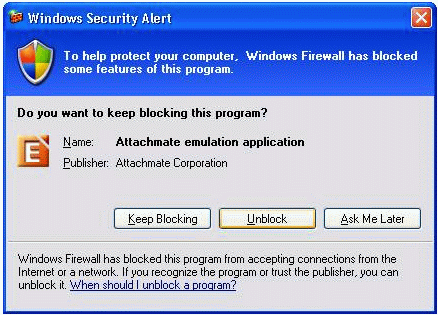
In most cases, EXTRA! is able to pass through the firewall with no additional firewall configuration because all communication with the host is initiated (solicited) by EXTRA!; however, if you are using the following products, components, or options, you must specifically configure the firewall to permit these connections.
Additional Notes:
- You must be a member of the Window's Local Administrative group to configure the firewall.
- The firewall can be configured using Group Policies or scripting. For more information about these deployment options, see Deploying Windows Firewall Settings for Microsoft Windows XP with Service Pack 2 on the Microsoft web site at
FTP File Transfer
There are two ways to avoid getting the Microsoft Windows security alerts when using FTP, enable the firewall to allow FTP or set FTP to use passive mode transfers.
Enable the Firewall for FTP
To configure the firewall to allow EXTRA! or myEXTRA! FTP, on the Windows Security Alert dialog box, click Unblock. The Attachmate emulation application is then added to the Windows Firewall Exceptions list.
Note: Only administrators can perform this action. Network administrators can manually add applications to the Windows Firewall Exceptions list, or use Group Policies or other mechanisms to add applications to the Exceptions list.
To manually add Extra.exe to the firewall exceptions list, see Manually Adding Applications to the Exceptions List.
Configure FTP for Passive Mode
To configure FTP to use passive mode when transferring files, complete the following steps.
- Open EXTRA!.
- Click Options > Settings.
- In the Categories list, select File Transfer.
- On the Click the Proxies tab, select Use passive mode when transferring files, and then click OK.
Passive mode causes the client to initiate both the FTP command and the actual file download through the same data port.
MPTN Connectivity
The Windows Security Alert message occurs when attempting to connect to the host using MPTN (Multi Protocol Transport Network or LU 6.2 over TCP/IP) connectivity. To avoid this message, either unblock the application or add port 397 to the Exceptions list.
To unblock EXTRA!, after the message appears, click Unblock. The "APPN Kernel Process" will be added to the Exceptions list.
Alternately, you can follow these steps to add TCP Port 397 to the Exceptions list.
- Open the Windows Control Panel and run the Windows Firewall.
- On the Exception tab, click Add Port.
- Complete the Add a Port form as follows.
Name: MPTN Port
Port number: 397
- Select the TCP radio button, and then click OK.
Enterprise Extender Connectivity
The Windows Security Alert message occurs when attempting to connect to the host using Enterprise Extender connectivity or HPR/IP (High Performance Routing over IP), To avoid this message, either unblock the application or add port 397 to the Exceptions list.
To unblock EXTRA! after the message appears, click Unblock. The "APPN Kernel Process" is added to the Exceptions list. Administrators may also manually add APPNODE.EXE to the Exceptions list.
To add TCP Port 397 to the Exceptions list, complete the following steps.
- Open the Windows Control Panel and run the Windows Firewall.
- On the Exceptions tab, click Add Port.
- Complete the Add a Port form as follows.
Name: MPTN Port
Port number: 397
- Select the TCP radio button, and then click OK.
Manually Adding Applications to the Exceptions List
If you clicked Ask Me Later or Keep Blocking in the Windows Security Alert, you can still add the application to the Microsoft Firewall Exceptions list manually. To manually add INFOConnect to the Exceptions list, follow these steps:
- From the Control Panel, click Security Center > Windows Firewall.
- On the Exceptions tab, click Add Program.
- Browse to and select the INFOConnect executable, and then click Open > OK > OK.