Environment
Situation
This technical note describes options for controlling productivity features in EXTRA! X-treme.
By default, the EXTRA! productivity features are enabled.
In some situations, users or administrators may want to partially or fully disable this functionality. For example:
- Some users with limited video display dimensions may not want the Productivity Bar pane displayed.
- Some users may not like productivity features displaying in the host screen.
- Troubleshooting or resolving other specific issues (such as described in KB 7021371).
About Productivity Features
Beginning with version 8.0, EXTRA! provides a number of productivity tools designed to improve user efficiency and automate repetitive tasks:
- Productivity features in the Productivity Bar pane:
- Scratch Pad: Keeps notes associated with a host session.
- Recent Typing: Capture recently typed items for viewing and re-sending.
- Macro Bar: Conveniently view and run installed and saved macros (also available in Tools > Macro).
- Screen History: Automatically record or manually capture host screens for viewing or saving.
- Microsoft Office Tools: Conveniently switch to Outlook, or create an e-mail message, contact, appointment, note, task, or Word document that includes your current host screen.
- Productivity features in the host terminal session screen:
- Spell Check: Marks possible errors with red wavy underlines, provides spelling suggestions, and automatically corrects common errors.
- Auto Complete: Remember what is typed in certain fields and automatically make popup suggestions for repeated entries.
- Auto Expand: Define acronyms or shortcuts for long words, phrases, or complex repeat commands. The shortcut, when typed and followed by spacebar, automatically expands to the full word or phrase.
Note: Asynchronous (VT) sessions to UNIX and OpenVMS hosts support a limited subset of productivity features.
Resolution
- Application View: After opening a host session, users can toggle display of the Productivity Bar pane in the View menu or by clicking the appropriate toolbar button:

Figure 1. Toolbar button to toggle Productivity Bar pane
- Session Settings: After opening a host session, users can choose the features to enable (Options > Settings > Productivity) and save the settings in the host session (*.edp) file. Thus, productivity features can be configured on a per-session basis.
- Session Defaults: Edit a template default file (*.edp), which affects new host sessions that are subsequently created in version 9.0 and higher. For more information, see Defaults for New Host Sessions.
- Security Options: Disallow the display of Productivity Bar items in Security Options (Options menu > Security > Options tab > Productivity Bar category). Changes are saved in the Default.esf security file and take effect the next time EXTRA! is started. Security Options take precedence over session settings.
- Custom Installation Wizard: Administrators can use the Custom Installation Wizard (CIW) to deploy any of the following:
- session files (*.edp) containing productivity settings
- template files (*.edp) containing defaults for new sessions that are subsequently created
- security file (Default.esf) to disallow certain Productivity Bar items
- registry settings that specify productivity preferences for sessions migrated from version 7.11 or earlier to version 9.0 or higher (see Defaults for Host Sessions Migrated From Prior Versions)
- Group Policy: Administrators can use Windows Group Policy to disable productivity features. This method takes precedence over other approaches listed above. For more information, see KB 7021792.
- Access Code: In versions 8.0 and 9.0, administrators could use a different installation access code to disable all productivity features. However, this method is not tested or supported. After using this method, re-enabling productivity features requires re-installing the EXTRA! product. Furthermore, beginning in version 9.1, access codes are no longer required for product installation.
Defaults for New Host Sessions
When new sessions are created in version 9.0 and higher, the productivity feature defaults are governed by settings in a template file. For the English language, these files are typically located in the \Program Files\Attachmate\EXTRA!\Sessions\ENU\Template folder. The template files are based on the host connection type:
- 3270.edp: For mainframe or z/OS connections
- 5250.edp: For AS/400 or iSeries connections
- Async.edp: For UNIX or OpenVMS (VT) connections
The template file can be opened in a text editor, such as Notepad. The productivity feature settings are in the [Productivity] section. To disable a particular productivity feature default, change YES to NO.
The original template *.edp files contain the following default values in the [Productivity] section. Note: Not all settings are available for all connection types, and not all settings will be present in all of the template files.
[Productivity]CPType=PRODUCTIVITYName=PRODUCTIVITYEnableProductivityPane=YESEnableMacroBar=YESEnableScratchPad=YESEnableRecentTyping=YESEnableHistory=YESEnableAutoComplete=YESEnableAutoExpand=YESEnableKeystrokeCalculator=YESSpellingOption=0SpellingMinFieldLen=8SpellingIgnoreUpperCase=YESSpellingIgnoreNumbers=YESSpellingCorrectTwoCaps=YESSpellingCorrectCapLockUsage=YESSpellingDictionaryPath=AutoCompleteAllScreenData=NOAutoCompleteRememberData=YESAutoCompleteMinNumChars=3AutoCompleteMaxNumSuggestions=5HistoryNumScreensToRemember=20RecentTypingNumFieldsToRemember=50OfficeEnableWord=YESOfficeEnableContact=YESOfficeEnableOutlookSwitching=YESEnableSpellChecking=YESOfficeEnableAppointment=YESOfficeEnableNote=YESEnableOutlookBar=YESOfficeEnableAddressBook=YESOfficeEnableTask=YESOfficeEnableMail=YES |
The changed template default settings will only apply to sessions subsequently created and will not affect existing sessions that were previously created and saved.
Defaults for Host Sessions Migrated From Prior Versions
The default behavior of productivity features in migrated sessions varies depending on the EXTRA! versions you are migrating from and to.
Migrating from 8.0 to 9.x (or from 9.0 to 9.1)
Existing productivity settings in the session profile file (*.edp) are honored. Sessions migrate seamlessly, and existing behavior is retained.
However, if you want to use the Custom Installation Wizard to set new defaults, manually delete the existing [Productivity] section in the *.edp session files and follow the steps in the next section.
Migrating from 7.11 or earlier to 9.x
Administrators can specify the productivity feature defaults when a user opens a session file (*.edp) that does not contain a [Productivity] section, such as saved in EXTRA! Enterprise 7.11 or earlier. The process is as follows:
- Administrators use the Custom Installation Wizard to specify the productivity feature defaults for migrated sessions. The applicable wizard panel (screen 14) is shown below.
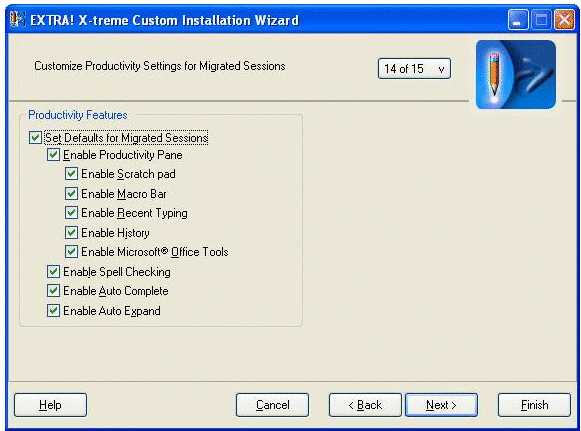
Note: If the Set Defaults for Migrated Sessions check box is cleared, migrated sessions will start with all productivity features enabled.
- The Custom Installation Wizard creates a transform (*.mst) which is used to modify the EXTRA! installer (*.msi).
- When EXTRA! is installed, the resulting deployed settings are written to the registry subkey HKEY_LOCAL_MACHINE\Software\Attachmate\Extra!\WorkstationUser\Preferences. The corresponding value names are listed below.
EnableProductivityPaneEnableScratchPadEnableMacroBarEnableRecentTypingEnableScreenHistoryEnableMicrosoftOfficeIntegrationEnableSpellCheckingEnableAutoCompleteEnableAutoExpand- When a user opens a session file (*.edp) that does not contain a [Productivity] section, EXTRA! checks the registry for productivity feature defaults. If the applicable registry values are not found, all productivity features are enabled.
These registry settings do not apply to new sessions that are subsequently created (see Defaults for New Host Sessions).
Migrating from 7.11 or earlier to 8.0
When a host session that was created in an earlier version of EXTRA! (for example, EXTRA! Enterprise 7.11 or earlier) is opened in EXTRA! X-treme 8.0, the [Productivity] section is automatically added to the *.edp file with the default values, thus enabling the productivity features.
To control defaults for productivity features, you must upgrade to version 9.0 or higher. For more information on upgrading, see KB 7021375.