Environment
Situation
By default, Reflection X provides several client and server templates that can be used to display X clients or entire UNIX desktops on a Windows workstation. This technical note provides links to additional templates that can be downloaded and used.
Resolution
Note the following:
- For information about using the Download Library web site, see KB 7021965.
- For information about configuring Reflection X to access client and server templates from your local web site, see KB 7021800.
Obtaining and Using Additional Templates
Additional client and server templates are available for download from the Download Library.
Client Templates
Client templates have an .rxc extension and are used to specify a host, host configuration parameters, login details, and any X clients that should be run on connection.
Available Client Templates
The zip file, RXClientTemplates.zip, contains all the client templates listed below and is available from the Attachmate Download Library.
| To establish this type of connection |
Use this template |
| Desktop on AIX (CDE) |
aix-xsession.rxc |
| Desktop on HP-UX (CDE) |
hpux-xsession.rxc |
| Desktop on Solaris (CDE or Java/Gnome) |
sun-xsession.rxc |
| Desktop on Linux or Solaris (Gnome) |
gnome-session.rxc |
| Desktop on Linux or Solaris (KDE) |
startkde.rxc |
| Desktop on VMS (CDE) |
vms-dtsession.rxc |
| xterm on Linux RHEL5 (new path) |
linux-rhel5.rxc |
| session manager on VMS |
vms-session_mgr.rxc |
| decterm on VMS |
vms-decterm.rxc |
Note the following
- These templates are intended for use with Secure Shell and telnet. Editing may be required for use with other connection methods.
- If you need assistance with editing a template, or if you need a template that is not provided, please contact Technical Support: https://support.microfocus.com/contact/.
- When using Reflection X versions 13.x through 14.x, you can disallow any remote connections by clicking Settings > Network, selecting the “Disable remote TCP/IP connections” check box, and then clicking OK. This disables all connection methods other than Secure Shell and provides the highest level of security.
Installing Additional Client Templates
Once you have obtained an additional client template, copy the template to the Reflection X client templates folder.
Client Templates Folder
To make the templates available to all users on the computer, copy the files to the Documents and Settings\All Users\Templates\Attachmate (or WRQ in version 13.x)\Reflection\X\<nnnn> folder, where "nnnn" is a four digit number representing the Reflection install language. See table:
| Language |
Folder Name |
| English |
1033 |
| French |
1036 |
| German |
1031 |
| Japanese |
1041 |
The directory in Windows Vista and Windows 7 is ProgramData\Microsoft\Windows\Templates\Attachmate\Reflection\X\<nnnn>.
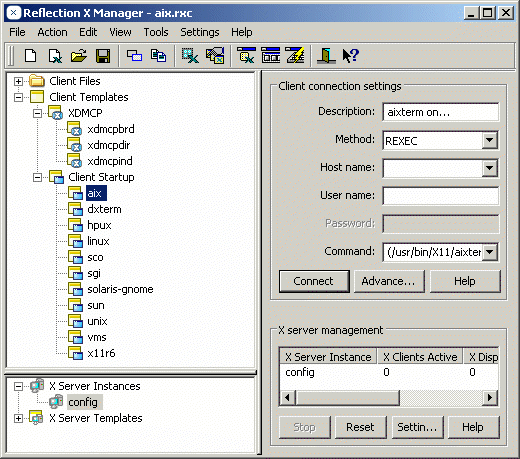
The templates will appear in the Reflection X Manger under Client Templates > Client Startup, the next time Reflection X is started.
Note: Depending on your Windows configuration, the All Users folder may be a hidden Windows folder or may be unavailable. If you do not have rights to this folder, you can copy the template to your personal folder (the location depends on your operating system):
Windows XP: Documents and Settings\<user name>\My Documents\Attachmate (or WRQ in version 13.x)\Reflection
Vista: \Users\<user name>\Documents\Attachmate\Reflection
Windows 7: \Users\<user name>\My Documents\Attachmate\Reflection
Once copied to your personal file, you must edit the template:
- Right-click Properties.
- Clear the Read-only option.
- Open the file in a text editor such as Notepad.
- Remove the “Template=1” line.
- Save the file.
Note that these templates would not be available to other Windows users.
Using Client Templates
Once the additional templates have been added to the correct Reflection X folder, and Reflection X has been restarted, the templates will be available from the Client Files > Client Startup or Client Templates > Client Files folders of the Reflection X Manager.
To use a client template, select the template, fill in any appropriate connection settings, and then click Connect.
If you do not see the template under Client Files or Client Templates, stop and restart Reflection X. Client templates can also be accessed by clicking File > Open Client File, navigating to and double-clicking the appropriate template, and then clicking Connect.
Server Templates
Server templates have an .rxs extension and are useful if you access multiple hosts or applications that require different X server settings. Reflection X server templates enable you to configure and open multiple pre-configured X server instances.
Note: We recommend that you install all fonts associated with the host type you will be connecting to, and in the Reflection X Manger, click Settings > Fonts and verify that all of the needed fonts appear in the Font paths list.
Available Server Templates
| Server template configured for |
Use this template |
Notes |
| Cadence |
Cadence.rxs |
If you are using Cadence on a Solaris
host, in the Reflection X Manager click > Settings > Color. Change
Default visual type to PseudoColor Emulation and select the these two
check boxes: * Use 1 for white pixel * Set maximum colormaps to 1 |
| Catia |
Catia_v4.rxs |
|
| IDEAS |
I-DEAS.rxs |
|
| Linux |
Linux.rxs |
|
| Perfect Drawings |
Perfect_Drawing.rxs |
|
Note: If you need a template that is not provided above, please contact Attachmate Technical Support: for contact information, see https://support.microfocus.com/contact/.
Installing Additional Server Templates
Once you have obtained an additional server template, copy the template to the Reflection X server templates folder.
Server Templates Folder
To make the templates available to all users on the computer, copy the files to the Documents and Settings\All Users\Templates\Attachmate (or WRQ)\Reflection\X folder (or ProgramData\Microsoft\Windows\Templates\Attachmate\Reflection\X on Windows 7 or Vista). Templates stored in this location will appear in the Reflection X Manager under X Server Templates the next time Reflection X is started.
Note: Depending on your Windows permissions, the All Users folder may be a hidden Windows folder. You need rights to this folder to add new server templates.
Using Server Templates
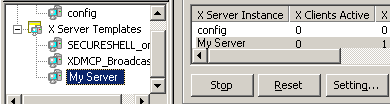
Once the additional templates have been added to the correct Reflection X folder, and Reflection X has been restarted, the templates will be available from the X Server Templates or X Server Instances folders of the Reflection X Manager.
To use a server template, double click the template. The template defined X server instance is started and appears in the X server management field.
Creating a Shortcut to Start a Specific Client Template and Server Instance
Follow the steps below to create a Windows shortcut that starts a specific client template and server instance.
- Start Reflection X and load the server instance.
- Select the client template you want to use, and then click File > Create Shortcut.
- Select where you would like the shortcut to be placed and then click OK.
This shortcut will start Reflection X with the active server instance and specified client connection; however, the shortcut is only available for the current user, unless the connection template is in a shared location.
Note the following
- Using the shortcut enables you to start Reflection X without running the default config server.
- To create your own client and server templates, see KB 7021800.