Environment
Situation
Reflection X enables you to manage multiple concurrent X server instances. This technical note describes an example of using the multiple X server instances feature. (This feature is sometimes referred to as managing multiple X displays.)
For details on creating, exporting, and distributing X server instances, see KB 7021777.
Resolution
How to Create and Run Multiple X Server Instances
The example in this technical note follows three steps to configure multiple X server instances. The steps, and the process for completing each step, are listed below.
Step Two – Open the Reflection X server instance.
Step Three – Create a new connection (RXC) settings file.
As you become familiar with using this feature, you may develop a process that is more suitable for your environment.
Step One – Creating New Reflection X Server Instance
Follow these steps to create new settings for each instance of the Reflection X Server you will be running. This process creates a settings key in the registry.
- In the Reflection X Manager, click File > New X Instance Settings.
- In the Create Settings dialog box, enter a unique name. This name is used to identify this instance of the X server.
- Click OK.
Repeat the process to create as many Reflection X server instances as you need.
Step Two – Opening the Reflection X Server Instance
Follow these steps to open the Reflection X server instance.
- In the lower-left pane of the Reflection X Manager, expand X Server Instances.
- Double-click the new X server instance, NewInstance, to start it.
Note the following:
- The name of the X server instance is displayed in the Reflection X Manager's title bar.

- The current server instance activity and display number is shown in the X server management pane of the Reflection X Manager.
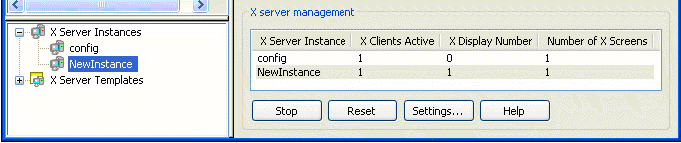
- All changes made from the Reflection X Manager Settings menu only apply to the currently managed server instance.
Step Three – Creating a New Connection (RXC) Settings File
Follow these steps to create a Reflection X shortcut and associate it with a Reflection X connection settings file and server instance.
- In the upper-left pane of the Reflection X Manager, select the client startup file that corresponds with the type of connection you want to make.
- In the Client connection settings pane, select the connection method, enter the host name, and if appropriate, user name, password, and command. (It is not necessary to connect to the host at this time.)
Note: If you change the command line, be sure to use the %IP#% macro to properly define the IP address and display number.
- Click File > Save As.
- Click the Shortcut button.
- In the Shortcut dialog box, verify that the "Create a shortcut when saving X client files" check box is selected. Specify a location for the shortcut, and then click OK.
- In the Save As dialog box, select the drive and folder in which to save the .rxc file and type the name in the Name field.
- Click Save.
The target of the new shortcut uses the -c and -s switches respectively, to load the appropriate RXC settings file and server instance. The target will look similar to this:
"C:\Program Files\Reflection\Rx.exe" -c "C:\Documents and
Settings\All Users\Templates\WRQ\Reflection\X\ENU\linux.rxc" -s
"NewInstance"
Repeat Step Two and Step Three to create as many X server instances and associated client settings files as you require.
How to Run and Customize Sessions
To run the session, start each session from the shortcut you created.
Information about each session running is displayed in the X server management pane of the Reflection X Manager. If you want to customize a server instance, select the instance you want to customize from the X server management pane before you make changes to the configuration. This ensures that the changes you make are saved to the appropriate server instance.
Note: If you run multiple X server instances, it is helpful to configure each instance to run in Single Window Mode. This mode makes it easier to keep track of the X applications running in each server instance.