Environment
Reflection Pro 2014
Reflection Standard Suite 2011
Reflection for UNIX and OpenVMS 2014
Reflection for UNIX and OpenVMS 2011
Reflection for UNIX and OpenVMS version 14.x
Reflection for HP version 14.x
Reflection for ReGIS Graphics version 14.x
Situation
Users can transfer files between a PC and host computer using the Reflection transfer protocol, provided that the appropriate Reflection file transfer program has been uploaded to the host. Reflection includes scripts to automate uploading these programs to the host computer. This technical note describes how to install, locate, and run the upload scripts.
Resolution
Install the Upload Script
In Reflection 2014 or 2011, the upload script is installed by default. Skip to Locate the Upload Script.
In Reflection 14.x, the upload scripts are not copied by Setup in a default Typical installation; they are only copied during a Custom installation when you have the Host Transfer Files feature selected.
For an existing Reflection installation, follow the steps below to add the file transfer programs and upload scripts:
- Open Control Panel and double-click Programs and Features on Windows 7, or the Add/Remove Programs icon on Windows XP.
- Select your Reflection product, and then click the Change or Add/Remove button (depending on your operating system).
- Proceed through the Reflection Setup wizard to the Select Features dialog box. This dialog box displays the components that are currently installed on your system.
Warning: In the Select Features dialog box, change only the components that you want to add or remove. Do not change the states of the other components. This functionality is different from earlier versions of Reflection that required you to clear selections, and then select only the features to be added or removed.
- Click on the plus controls to expand Reflection > Host Access > HP, UNIX & OpenVMS > File Transfer. Click the Host Transfer Files red X icon and click "Will be installed on local hard drive."
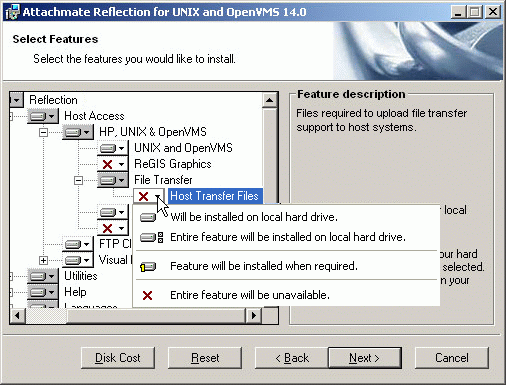
- Click Next twice to add the component.
Enable the Script Menu
In Reflection 2014 or 2011, the script feature is active by default. Skip to Locate the Upload Script.
In Reflection 14.x, by default, the Script menu is not active. The Script menu is needed to run the upload script. Follow these steps to enable the Script menu:
- Start Reflection. Click Menu on the Setup menu.
- Click Macro under Defined menu to select this menu item.
- In the Available options box, open Additional items. Then open Items from versions 6.x, and select Script
- Click Add After. Click OK.
- Click Save on the File menu to save your changes.
The Script menu will now appear to the right of the Macro menu.
Locate the Upload Script
The upload script location and name varies depending on the Reflection product version and language you are using and the type of host system you will connect to. Follow the steps below to locate the correct Reflection Basic upload script for your version and language.
Reflection 2014 or 2011
- In a default Reflection 2014 or 2011 installation, the upload scripts are located in C:\Program Files\Attachmate\Reflection\Host\ on 32-bit machines, and in C:\Program Files (x86)\Attachmate\Reflection\Host\ on 64-bit machines. The location of the Host files depends on the product language installed; use the table below to determine the correct folder location for your installation.
| Language |
Path |
| English |
Reflection\Host\1033 |
| French |
Reflection\Host\1036 |
| German |
Reflection\Host\1031 |
| Japanese |
Reflection\Host\1041 |
| Italian |
Reflection\Host\1040 |
| Spanish |
Reflection\Host\1034 |
| Portuguese |
Reflection\Host\1046 |
- Identify the upload script file for your host system in the following table.
| Host System |
File Name |
| MPE (HP e3000) |
uploadhp.rbs |
| UNIX/Linux |
uploadux.rbs |
| OpenVMS, Alpha AXP/VMS, and VAX/VMS |
uploadvx.rbs |
Reflection 14.x
- Host files are provided for English, French, German, and Japanese installations of Reflection. Use the table below to determine the correct folder location for your installation. (By default, in Reflection 14.x, the Reflection folder is located in C:\Program Files\Attachmate\Reflection\Host\ on 32-bit machines, and in C:\Program Files (x86)\Attachmate\Reflection\Host\ on 64-bit machines).
| Language |
Path |
| English |
Reflection\Host\1033 |
| French |
Reflection\Host\1036 |
| German |
Reflection\Host\1031 |
| Japanese |
Reflection\Host\1041 |
- Identify the upload script file for your host system in the following table.
| Host System |
File Name |
| MPE (HP e3000) |
uploadhp.rbs |
| UNIX/Linux |
uploadux.rbs |
| OpenVMS, Alpha AXP/VMS, and VAX/VMS |
uploadvx.rbs |
Run the Upload Script
Follow the steps below to run the script and upload the file transfer programs to the host computer.
In Reflection 2014 or 2011:
- Start Reflection and establish a host connection.
- Log in to your host computer and go to a system prompt.
If you do not have access to a system prompt, contact your system administrator.
- In the Run Macro dialog box, select Legacy RB Macro.
- Navigate to the location of the upload scripts and select the Reflection Basic script appropriate for your host, and then click Run.
- When prompted, accept the default settings. This will upload the file transfer program successfully in almost all situations.
Note: If you have trouble running the script, make sure that the scripts are located in a trusted location.
In Reflection 14.x:
- Start Reflection and establish a host connection (serial, modem, or network).
- Log in to your host computer and go to a system prompt.
If you do not have access to a system prompt, contact your system administrator.
- Click Script > Run Script (available after you Enable the Script Menu).
- Select your script (as determined in Locate the Upload Script section above), and then click Run.
- When prompted, accept the default settings. This will upload the file transfer program successfully in almost all situations.
When the Successful Host Upload notification appears, the file transfer program has been uploaded.
About the IA64 Version of VAXLINK2 in Reflection
Vaxlink2 has been ported to the Itanium Integrity Server using the Alpha Environment Software Translator (AEST) utility. The AEST utility translates the alpha executable image into an I64 compatible object. In order to run the translated image you will need to install the Translated Image Environment (TIE). TIE provides the run-time environment for executing translated images.
TIE for OpenVMS v8.2 on Integrity servers should be downloaded and installed on the target system. To download, click the link:
TIE has been integrated into HP OpenVMS v8.2-1 for Integrity servers.