Environment
Situation
Resolution
Recording Model Debug Messages
Model debug messages can be recorded in Design Tool or Session Server.
Design Tool
Model debug messages recording is always enabled for models you open in Design Tool.
Session Server
The Session Server can be configured to record model debug messages at runtime. This feature is designed to minimize performance impact on the server. The recorded .vmr files can be later opened in Design Tool for analysis.
You can configure the recording level using one of the following methods:
- When deploying a model with Design Tool: Click File > Deployment Options > Recording tab.
- When deploying a model with command line tools: In your deployment descriptor model-configuration section, the recording-mode must be set after host-port. See also http://docs2.attachmate.com/verastream/vhi/7.7/en/topic/com.attachmate.vhi.help/html/reference/deploy_descriptor.xhtml. Note: Beginning in version 7.7, record-errorsessions is an additional recording mode option.
- In Administrative Console: You can configure recording options in Model Properties or Session Pool Options. Note: Model and pool configuration in Administrative Console is lost when a model is re-deployed.
Choose one of the following options:
Record nothing: No model debug messages are recorded. This option is the default behavior.
Record errors: Model debug message files are only retained when an error is encountered. However, this option only captures the last error event, such as the procedure that failed, not the entire session.
Record error sessions: This option is available beginning in version 7.7. When an error is encountered, the entire session is captured from the beginning.
Record everything: All model debug message files are retained. This setting may be appropriate when debugging a model under development. However, on a production server, this option may generate a large number of .vmr recording files and have an impact on server performance.
You can change the recording file directory or file retention behavior in Administrative Console (Session Server Properties > General > Model Debug). See also http://docs2.attachmate.com/verastream/vhi/7.7/en/topic/com.attachmate.vhi.vmc.help.online/tasks/vhi_mc_srv_prop_general.xhtml.
Opening Model Debug Messages
To open the Model Debug Messages dialog box in Design Tool, click Debug > Model Debug Messages. Alternatively, you can press Ctrl+Alt+M to open the Model Debug Messages dialog box.
To open a model debug messages .vmr file previously saved in Design Tool or recorded by a Session Server, do one of the following:
- Starting with VHI 7.7 SP1 Update 2 there is a standlone VMR viewer and if it was installed go to the Windows Start menu > Micro Focus Verastream > VMR Viewer. Click the Open button to select the file.
- Start the VMR viewer from the Design tool and click the Open button to select the file.
- In Windows Explorer (on a system with Development Kit 7.0 or higher, or Server Kit 7.7 SP1 Update 2 or higher), double-click the .vmr file.
Note the following:
- The Session Server writes .vmr files to subdirectories in <vhi>/etc/reports (or other configured Model Debug Messages Directory). Since older .vmr files are automatically removed from the server (by default, after 7 days), it is suggested that you copy the files (or increase or disable the cleanup thresholds) if ongoing analysis may be necessary.
- To find your appropriate model debug messages file, the Session Server .vmr file name contains the model name and server Session ID. If the server is configured to record errors only, the .vmr file name also contains the failed Request ID. These ID numbers correspond to values that can be obtained in client code using connector GetSessionId() and GetLastRequestId() method calls.
- The .vmr file names that contain start, idle, and stop correspond to session pool activity before the first client request, between client requests, and during session logoff (respectively). For example, AccountLookup.502.idle.vmr contains any keepalive operations that are executed following client disconnection (from session ID 502) and before the next client connection. A new Session ID value is used each time a client connects, even if a session pool host session is re-used.
- The .vmr file should be opened with the same (or higher) product version that recorded the file. You can use Design Tool to open a .vmr file that was recorded with the same or previous version. However, Design Tool is not designed to read a .vmr file that was recorded with a higher version.
- You can have multiple recordings open at the same time (which display on separate tabs in the Model Debug Messages dialog box). This enables you to compare model behavior under different circumstances or after you have made changes to the model. In version 7.1.1142 and higher, you can open up to 50 files simultaneously per Design Tool instance. In versions 6.0 through 7.1.221, the limit is 5 recordings (4 .vmr files plus Design Tool).
- If you prefer to work with text files (instead of using the graphical Model Debug Messages dialog box as described below), you can convert .vmr files to text using the undocumented vmr.exe utility located in the VHI bin folder.
- In version 7.5.1030 (7.5 SP1) or higher, host passwords and other sensitive data are not visible in model debug messages. For more information, see Redacting of Confidential Data in KB 7021314.
Using Model Debug Messages
The Model Debug Messages dialog box displays a message list on the left, and message details on the right.
Message List
See Figure 1 below for a sample model debug message list. Use the following toolbar buttons to manipulate the messages list:

Display all messages.

Display only datastream messages.
This option displays only messages that relate to the terminal exchanging data with the host, such as transmit, receive, and data processing messages. This option also displays entity arrival and departure, operation start and end, and errors associated with the datastream messages.

Display relative time for descendants (toggle option).
By default, descendant messages associated with an action such as navigating to another entity are displayed with the time of the descendant message. Click this option to show time that elapsed relative to the action's start. This option helps identify abnormal delays associated with specific messages.

Find a message.
Click this option and type in a string to locate a specific message. You can also use the Find Message dialog box to find other occurrences of the messages, or to find messages of the same type as the selected message.

Find next error.
Click this button to locate the messages that are tagged as errors in the model debug messages list.

Clear all messages. (Actions that are in progress will not be cleared.)
Use this option when you are debugging a development version of a model and want to see the model's behavior after making some changes. You can save the previous collection of model debug messages before you use this option.

If you have opened an additional model debug message .vmr file, click this button to close the file. (The Current Model tab cannot be closed.)
Message Details
The right panel of the Model Debug Messages dialog box shows the details of the message selected on the left. Depending on what type of message is selected, the right panel will show one or more of the following:
- Ending snapshot: A view of the terminal screen (see Figure 2 below). The grey area of the snapshot represents the area of the screen that changed during the course of action. With character mode hosts, this is helpful for discovering a partial screen update when a full screen of data was expected to be processed. This feedback makes it easy to identify where a synchronization issue needs to be handled.
- Starting and ending snapshots: When a navigation message is selected, both the "before" and "after" terminal screens are displayed.
- Message: When an error or operation message is selected, the message text is repeated in the lower-right panel. This text can be selected and copied to the clipboard by using the right-click menu or Ctrl+C keystroke.
- Procedure data: When a procedure message is selected, the procedure filter parameters and procedure output are displayed. You can use the Copy button to copy the filter parameters or procedure results to the clipboard.
- Datastream: When a datastream message is selected, the data sent to or received from the host is displayed in the lower-right panel. See also the Datastream Panel section below.
- Client Requests: When a client request message is selected, the details of the request and the response are displayed.
- Event Handlers: When a fire event message or event callback message is selected, the input and output of the event or callback is displayed.
Datastream Panel
When a datastream message is selected, the datastream panel provides the following functionality:
- You can view the raw data sent to and received from the host. Nonprintable characters, such as control functions, appear in blue text.

- When debugging a VT model, use the Suggest Escape Sequence button to have the model debug messages utility suggest a unique trailing escape sequence (if present) that can be used to help synchronize the model.
You can copy text from this panel to the clipboard by using the right-click menu or Ctrl+C keystroke. This is useful to paste into a WaitForCommString command (in the Operation Edit dialog box, or in the Host Event Edit dialog box after selecting Host Communication String event) to resolve synchronization issues (see also KB 7021531).
You can type a string into the text box at the bottom of the datastream panel. All instances of that string are immediately highlighted in the datastream.

- Use the Next Match button to move to the next occurrence of the entered string.

- Use the Previous Match button to move to the previous occurrence of the entered string.
Locating and Solving a Synchronization Problem
If your model does not reach an expected entity or cursor location, review the model debug messages. The example below shows a sequence on a VT host for a PageDown operation.
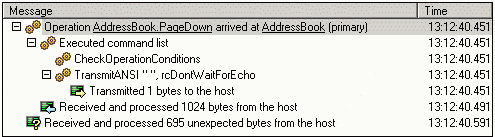
The final message, indicating unexpected bytes received from the host, is a strong indicator of a synchronization problem with the host. By reviewing the messages preceding this message, you can narrow down the source of the problem.
The highlighted message, "Operation AddressBook.PageDown arrived at AddressBook (primary)" has the associated ending snapshot on the lower-right panel:
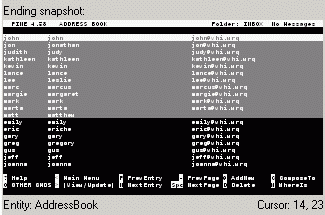
With a PageDown operation, a full screen of data should have been processed, but the action and the associated snapshot shows only a subset of the host screen (with a gray background) was actually received.
To ensure that all of the expected data is processed before proceeding, you can add a WaitForCommString command to the operation. Use the Suggest Escape Sequence button as described in Datastream Panel section above.
Note: There may be cases where a synchronization issue does not produce a message that unexpected bytes were received from the host, especially when running on the server. It is a good idea to look for partial operation snapshots similar to the one above whenever the model does not reach an expected entity or cursor location.