Environment
Situation
Modeling character mode (VT and HP) host applications can be different from modeling 3270 block mode host applications, so the Verastream Host Integrator Design Tool provides configuration options to help you with this process. This technical note contains a collection of tips on how to use these options. Refer to the online help for more details on how to apply the synchronization tips.
To follow along and view a model example of a VT host application while reviewing this document, follow the steps below.
- Start the Verastream Host Integrator Design Tool.
- Click File > Open.
- Navigate to the <VHI install directory>\models\pine directory, select pine.model, and then click Open.
- Click Connection > Offline Mode.
Resolution
Synchronization Overview
Your host application may be unpredictable when slower execution masks missed synchronization issues. Synchronization in a Host Integrator model ensures that the entire host screen has been received before reading or transmitting data. If you don't develop methods to ensure synchronization, the model can read incorrect values from attributes and fields, write to the wrong locations, or fail to position the cursor at a desired location.
Synchronization is important in operations, when writing attributes, and when using cursor movement commands. Implementing synchronization techniques is critical for any VT or HP character mode model.
Note: Some of the following recommendations rely on improvements to operation handling added in version 6.0. If you are working on a model in version 6.0 or higher that was originally created with an earlier version of Host Integrator, disable the compatibility setting Verastream 5.5 Host Data Processing Compatibility. For more information about compatibility settings, see Technical Note 40023.
Wait Commands
In general, using an appropriate Wait command after every transmission is the most reliable technique for ensuring synchronization in your operations. The Wait commands below are listed with the most highly recommended strategies first.
Note: VHI 6.0 implements the following recommendations when generating operations for VT and HP hosts when the "Automatically generate operations" option is selected on the Settings > Preferences > Operation tab.
- WaitForCommString applies when there are escape sequences in the host data and the last set of escape sequences is unique. An example of an escape sequence is "\033EnterData", which represents the escape key followed by the string data. This syntax represents the C programming language conventions that use a backslash (\) followed by three octal numbers to represent any character. These sequences can be captured by copying and pasting text from the Model Debug Messages Window (in version 6.0 or higher) or the Datastream Window (in version 5.5) into the Operation Edit dialog box when the WaitForCommString command is selected. Beginning in version 6.0, there is an option you can use to specify the number of times a string is received from the host.
- When the host response could differ from one time to the next, use a WaitForMultipleEvents command. This command allows several globally defined events, e.g. a combination of the above WaitFor events to be encapsulated into one command within an operation. This enables Host Integrator to rely on an order of events rather than the number of data packets that are sent from a character mode host.
- WaitForDisplayString applies to cases where the command is prompting for input.
- WaitForCursorAtLocation can be used if the cursor always arrives at the same location. This command may not be dependable if the cursor passes through a location in a transition before arriving at the location a second time.
- WaitForUpdate is not recommended unless you're dealing with a small update area. The first character changed in the specified region will satisfy this wait condition. If you're updating a model created with an earlier version of Host Integrator, be sure to disable the compatibility settings associated with WaitForUpdate (see the "Compatibility Settings for Host Integrator Upgrades" topic in the VHI User Guide. For example, in VHI 7.6, see http://docs2.attachmate.com/verastream/vhi/7.6/en/topic/com.attachmate.vhi.help/html/reference/compatibility_switches.xhtml).
- WaitMS and Wait commands (that wait a specified amount of time) are not recommended, since they introduce static delays that slow performance.
Entity Validation
Because there is nothing in the character mode datastream to denote what constitutes a screen, configuring entity validation is helpful when modeling character mode applications. This validation enables Verastream to delay its entity arrival notification until certain conditions are met.
To access this functionality:
- Select the entity from the Entity drop-down menu.
- Click Entity Advanced Properties.
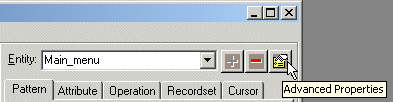
- Click the Validation tab.
Select one of the following options to configure entity validation:
Option 1: Select the Wait for cursor check box to validate the entity once the cursor arrives at a certain position. Specify the position in the Row and Col boxes.
Option 2: If Option 1 fails, select the Wait for patterns check box and move one or more configured patterns from the Unused list to the Check list. Once a validation pattern is moved to the Check list, Verastream does not validate the entity until this pattern is identified.
Note the following:
- Clear the Use in entity signature check box on the Pattern tab before using a pattern for entity validation. You must also clear the Use in entity signature check box if you are using error patterns or error entities.
- Using a pattern in entity validation isn't necessarily the best solution for modeling character mode applications because the pattern may appear while the cursor is moving around the screen. Try configuring Option 1 before trying this method.
- The home entity should not be defined as an error entity or an alternate destination entity.
Option 3: Select the Wait for condition check box to create a condition in the Condition Edit dialog box. This option often handles situations where the final cursor position may be at any of several locations.
Writing to Attributes and Recordset Fields
Configuring character mode data entry for attributes and recordset fields is important when Verastream needs to write to more than one attribute or recordset field on a single entity.
Attributes
- On the Attribute tab, select the Echo tab.
- Select a Character mode data entry option.
Select the "Wait for string to echo at cursor" option to wait for the exact data string to be written back to the terminal screen after data has been sent to the host. This is the most robust option you can use when working with character mode hosts. Note: With character mode applications, the cursor must be wherever characters are being written to the screen. For this reason, use this option to synchronize with the host application.
Other options are "Wait for same number of characters to echo," "Wait for next tabstop," or "Wait for next tabstop or string to echo at cursor." For more details on these options, see the online help.
- If the above steps did not help, then try caching all attribute writes. Caching all attribute writes creates a temporary storage area for data assigned to attributes. The attribute data is temporarily stored until an operation issues an UpdateAttribute or UpdateAttributes command to write the stored data to the terminal screen. Alternatively, an operation can call UpdateAttribute for each attribute in the desired order, inserting other commands in between as needed to modify cursor positioning, synchronize with the host state, or meet any other requirements to be executed by the operation.
To globally configure all attribute data to be cached on new entities, select the "Cache all attribute writes" check box on the Entity tab of the Preferences Setup dialog box.
To cache attribute writes on a selected entity, select the entity in the Entity window and select the "Cache all attribute writes" check box on the General tab of Advanced Entity Properties dialog box.
Recordset Fields
- On the Recordset tab, select the Field tab, and then click the associated Advanced Properties icon:
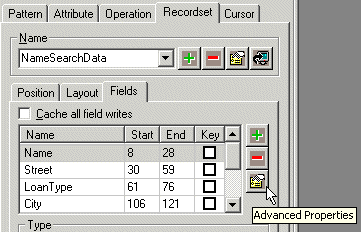
- In the Advanced Recordset Field Properties dialog box, select Wait for string to echo at cursor. Waiting for the characters to be echoed by the host ensures that the cursor is at rest before Verastream tries to move it to the next attribute. This prevents Verastream from positioning the cursor in the wrong location.
This setting can also be defined as the default for new attributes or recordset fields in the View Settings dialog box. To configure this setting:
- Click Settings > View Settings.
- Expand Entity Design, expand Attributes, and then select Character Mode Data Entry for Attributes.
- From Entity Design, expand Recordsets and select Character Mode Data Entry for Recordset Fields to configure recordset fields.
If the above steps did not help, then try caching all field writes by selecting the "Cache all field writes" option on the Recordset Fields tab.
Caching all field writes creates a temporary storage area for data assigned to recordset fields. In an operation, field data can be assigned using write commands like DefaultValue and TransmitToField. When Caching all field writes, the field data is temporarily stored until an operation issues an UpdateAttribute or UpdateAttributes command to write the stored data to the terminal screen. Alternatively, an operation can call UpdateAttribute for each field in the desired order, inserting other commands in between as needed to modify cursor positioning, synchronize with the host state, or meet any other requirements to be executed by the operation.
To globally configure all recordset field data to be cached on new recordsets, select the Cache all field writes check box on the Recordset tab of the Preferences Setup dialog box.
To cache all recordset field rights on a selected recordset, select the Cache all field writes check box on the Fields tab of the selected recordset.
Defining Cursor Movement
You typically need to define cursor movement command lists for VT and HP applications because character mode host applications use cursor positioning to determine when to write data. Cursor movement definitions are especially important when the cursor cannot be moved to a location on the screen with the arrow keys. Without a cursor movement command list, Verastream's default is to use the arrow keys. For example, if the cursor is at (2,2) and the attribute is at (2,10), Verastream sends eight right arrow keys to the host attempting to end up at the correct location. Sometimes, these host applications can be unpredictable and the cursor may not end up in the same position each time that screen is used. If Verastream does not reach the expected location, you will receive the error that the cursor could not be moved.
Tab Key
If the host uses the Tab key to move between fields, define a global move forward cursor movement command list in the Advanced Model Properties dialog box. To access this dialog box, click Model > Properties, and then click Advanced.
Example using the Tab key with a VT host:
TransmitTerminalKey rcVtTabKeyExample using the Return key with an HP host:
TransmitTerminalKey rcHPReturnKeyNote: On HP host applications, the Enter key and the Return key are quite different. On HP host applications, the Enter key refers to the keypad Enter key.
In each case, the command sends the tab key or return key to move the cursor. If the host does more than move the cursor to the next location (for example, it updates a status line or redraws other sections of the screen), then you should be using tabstops. Use the Model Debug Messages Window (in version 6.0 or higher) or the Datastream Window (in version 5.5) to determine if the host is doing more than just moving the cursor.
Once you've defined a move forward command list, Verastream repeatedly executes this command list until it arrives at the starting location for the attribute or attributes you are writing to. If the host never positions the cursor at the attribute, you will receive an error that the cursor could not be moved.
Tabstops
If the host sends more than one packet in response to the tab key, define tabstops on any entity that has multiple attributes. When tabstops have been defined on an entity, Verastream waits for the cursor to arrive at a defined tabstop after each execution of a move forward or move backward command list.
You can define tabstops for an entity on the Cursor tab. Typically, you can click the Generate Next button to generate them automatically. By default, the tabstop order is not significant because Verastream only requires that a given position be defined as a tabstop.
Note the following:
- If moving through the fields of your host application requires application interaction, you may have to define the tabstops manually.
- When generating tabstops, if you are using validation and the Wait for cursor option, temporarily clear the Wait for cursor check box on the Validation tab of the Advanced Entity Properties dialog box. If you do not clear this check box, the screen snapshot will fail because the entity is set to match attributes according to cursor positioning and generating a tabstop changes the initial cursor position.
Other Synchronization Tips
The following suggestions provide some additional solutions to synchronization problems.
- Configure Advanced Recordset features.
If you are using recordsets in your model, use the features available on the Recordset Operations, Recordset Termination Options, and Recordset Options dialog boxes to maximize synchronization between a character mode host application and Verastream. These dialog boxes can be accessed by clicking the Operations, Termination, and Options buttons located on the main Verastream Recordset tab.
- Increase timeout duration.
To increase the global navigation timeout duration, click Model > Properties. This change may eliminate timeout problems with large recordset or procedure output.
Note: After increasing model timeouts you may also need to increase the client timeout. See KB 7021534.
Debugging Synchronization Problems
In VHI 6.0 and later, use the Model Debug Messages debug option to review the real-time data sent and received from a host. For more information, see KB 7021543.